First pass vs finish
Miri is the triage step. Lightroom is where the selected frames get developed and organized afterward.
Lightroom earns its keep once you know which frames deserve the work. The slow part is everything before that: importing a full shoot into a catalog just to find the keepers. Miri handles that first pass, then hands the survivors over.
Being clear up front: Lightroom is a full editor and asset library. RAW development, color grading, masking, collections, cloud sync across devices — none of that is Miri's job, and if that's the part you're paying for, keep paying for it. Miri doesn't develop a single pixel.
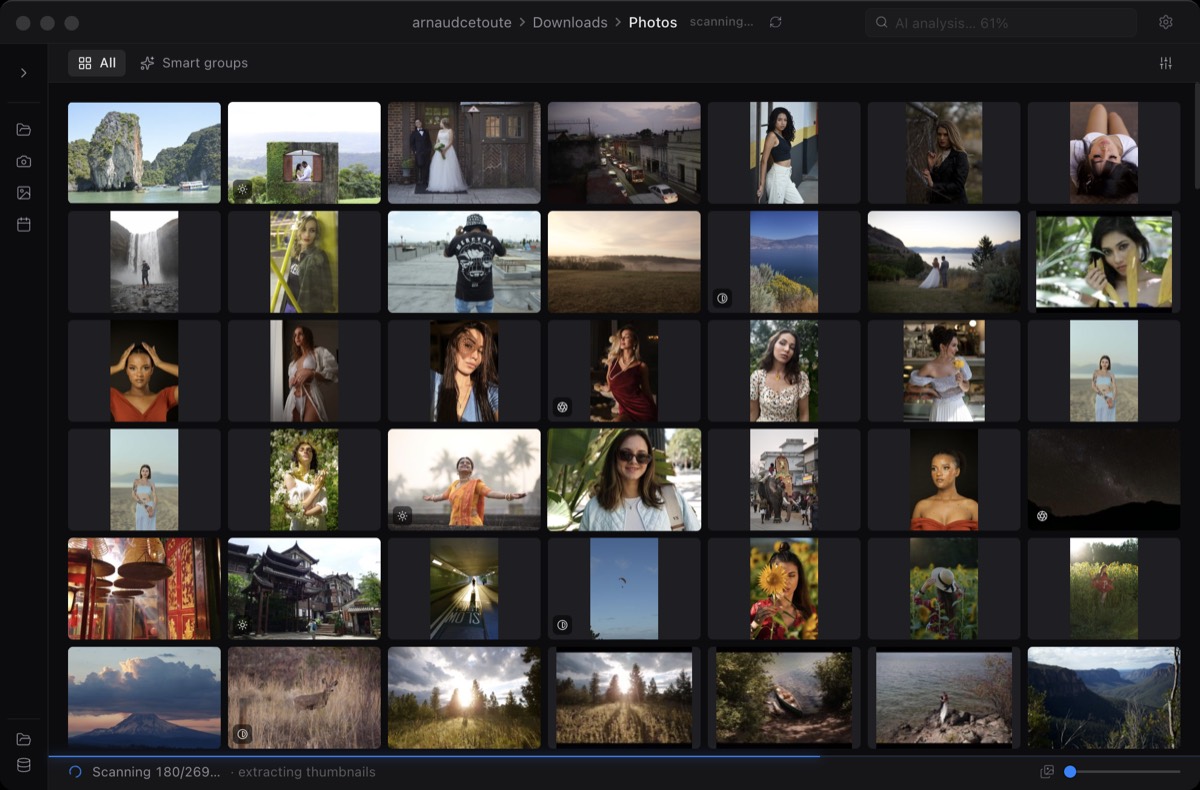
What Miri changes is the step before you ever open the Develop module. Instead of importing a thousand frames into the catalog to sort them, you look at the folder directly, throw out the misses, and import only what's left.
Miri is the triage step. Lightroom is where the selected frames get developed and organized afterward.
Miri opens the folder on your drive as it is. Lightroom wants the shoot inside its catalog before you can work.
Miri is bought once for the culling step. Lightroom stays a monthly subscription for editing and the library.
Miri keeps everything on your Mac, including the AI. Lightroom leans on Adobe's cloud for sync and storage.
Open the RAW folder in Miri and move through the previews before deciding what needs a full edit.
Run smart analysis to surface blur, near-duplicates, and exposure misses, so the rejects are grouped before you import anything.
Take the smaller, cleaner set into Lightroom, or export JPEG previews for a client review first.
No, and it isn't trying to be. Miri doesn't develop RAW files, grade color, or manage a catalog. It handles the first pass — the part where you're deciding what's even worth editing — and hands the survivors to whatever editor you already use.
Because importing a full shoot into a catalog just to find out most of it is filler is slow. Miri lets you review the folder in place, cut it down to the keepers, and only import the smaller set that actually deserves Lightroom's attention.
If you edit in Lightroom, yes. Miri sits before it, not instead of it. The difference is that Miri is a one-time purchase for the culling step, while Lightroom stays a monthly subscription for the editing and library work.
No. Miri reads your folder without touching the catalog and exports separate JPEGs, or leaves the selected RAW files ready for you to import yourself. Nothing is synced to the cloud in the process.